
Video Tutorial
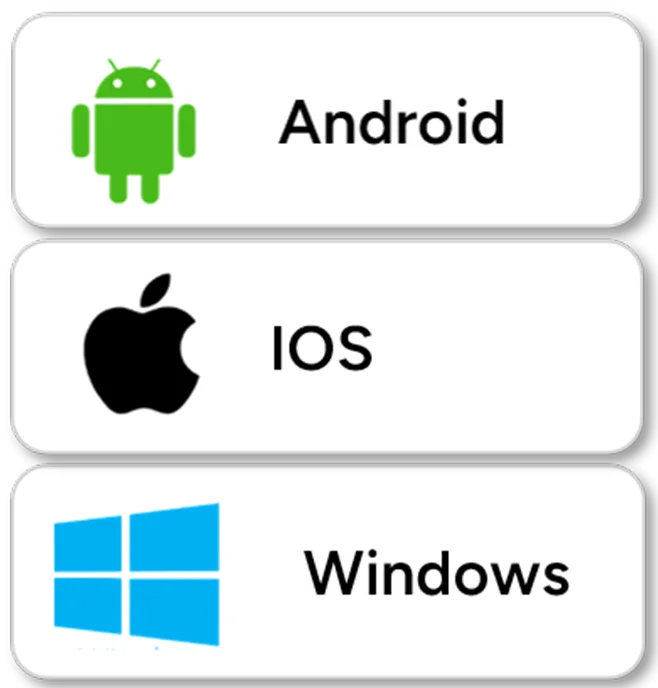
1 Download MY USG App
Search and install “MY USG”
on your smartphones/tablets/laptops.
Please contact us to get the windows software
Note:
iOS version 11.0 or newer
Android version 8.0 or newer
Windows10 Laptop,5G,
64-bit or newer
2 Turn On/Off USG Probe
Press the power button  to turn on the probe,the indicator will show the battery icon.and hold for 5 seconds to turn off the probe.
to turn on the probe,the indicator will show the battery icon.and hold for 5 seconds to turn off the probe.
Note:
Press the power button
and hold for 3 seconds to
switch the scanning probe
and hold for 3 seconds to
switch the scanning probe
3 Connect USG Probe
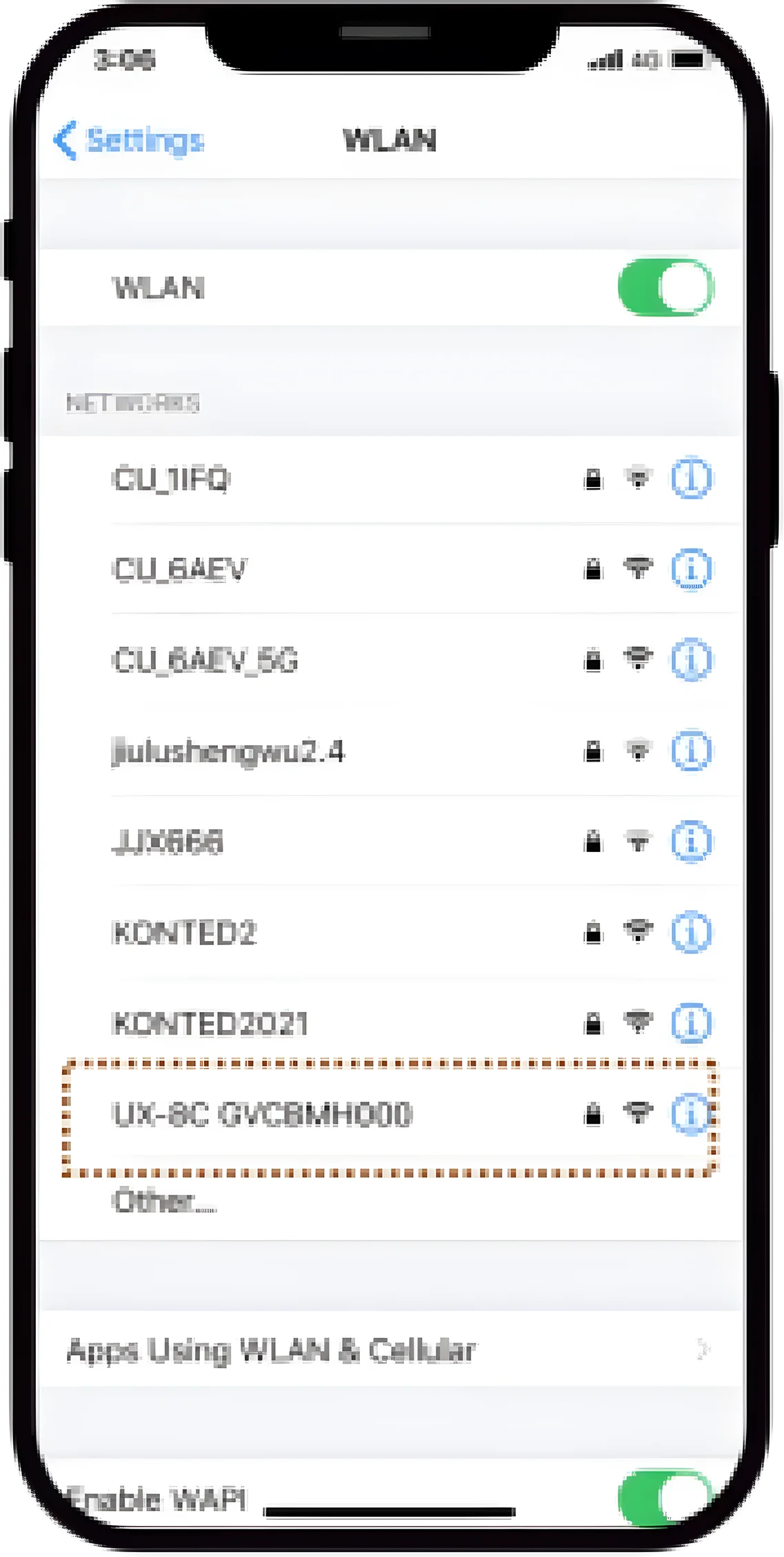
3.1 Method 1:Wi-Fi Connection
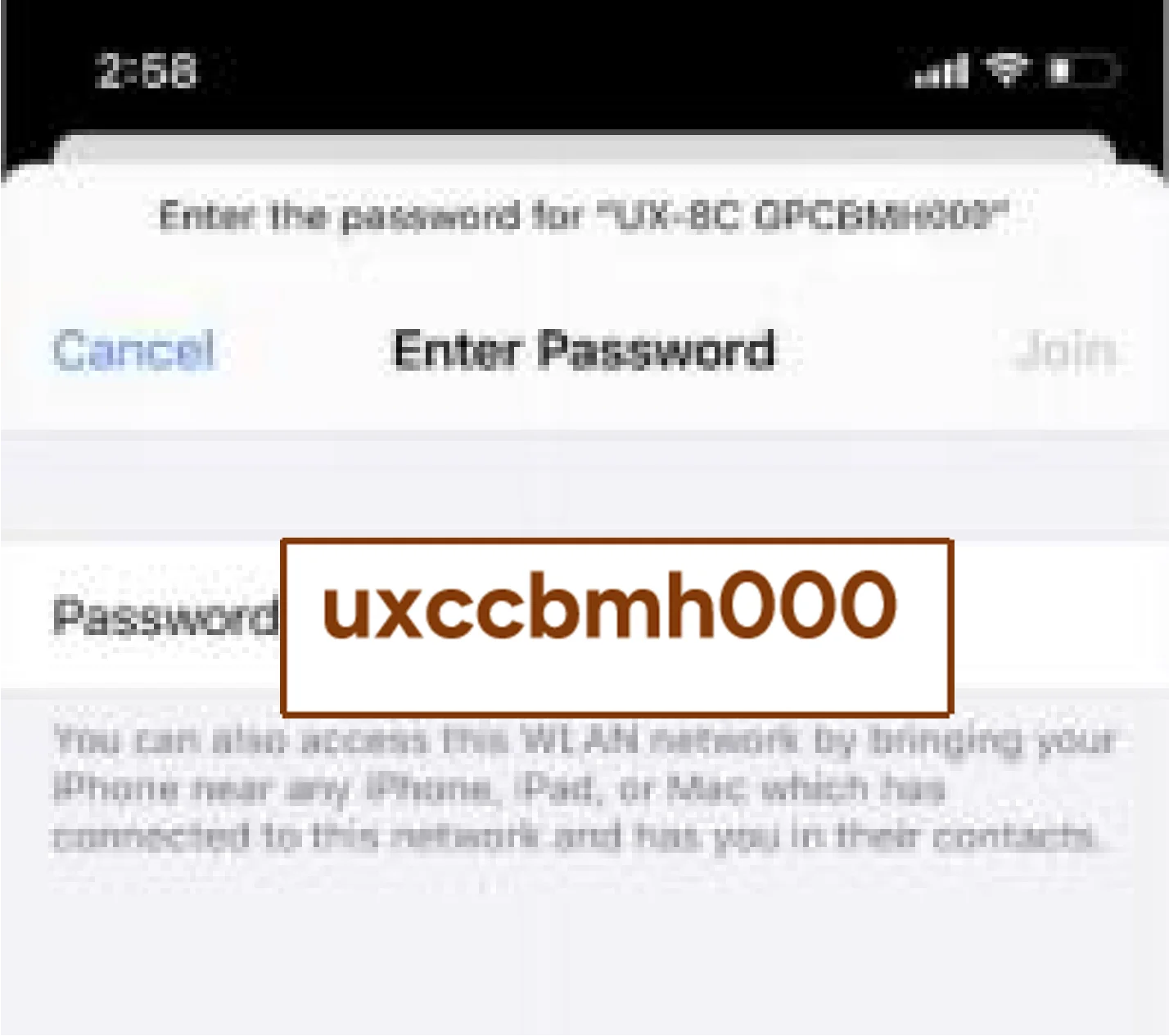
Find SN of your USG probe Such as SN: UXCCBMH000

Choose SSID “****BMH000”
Enter password: uxccbmh000
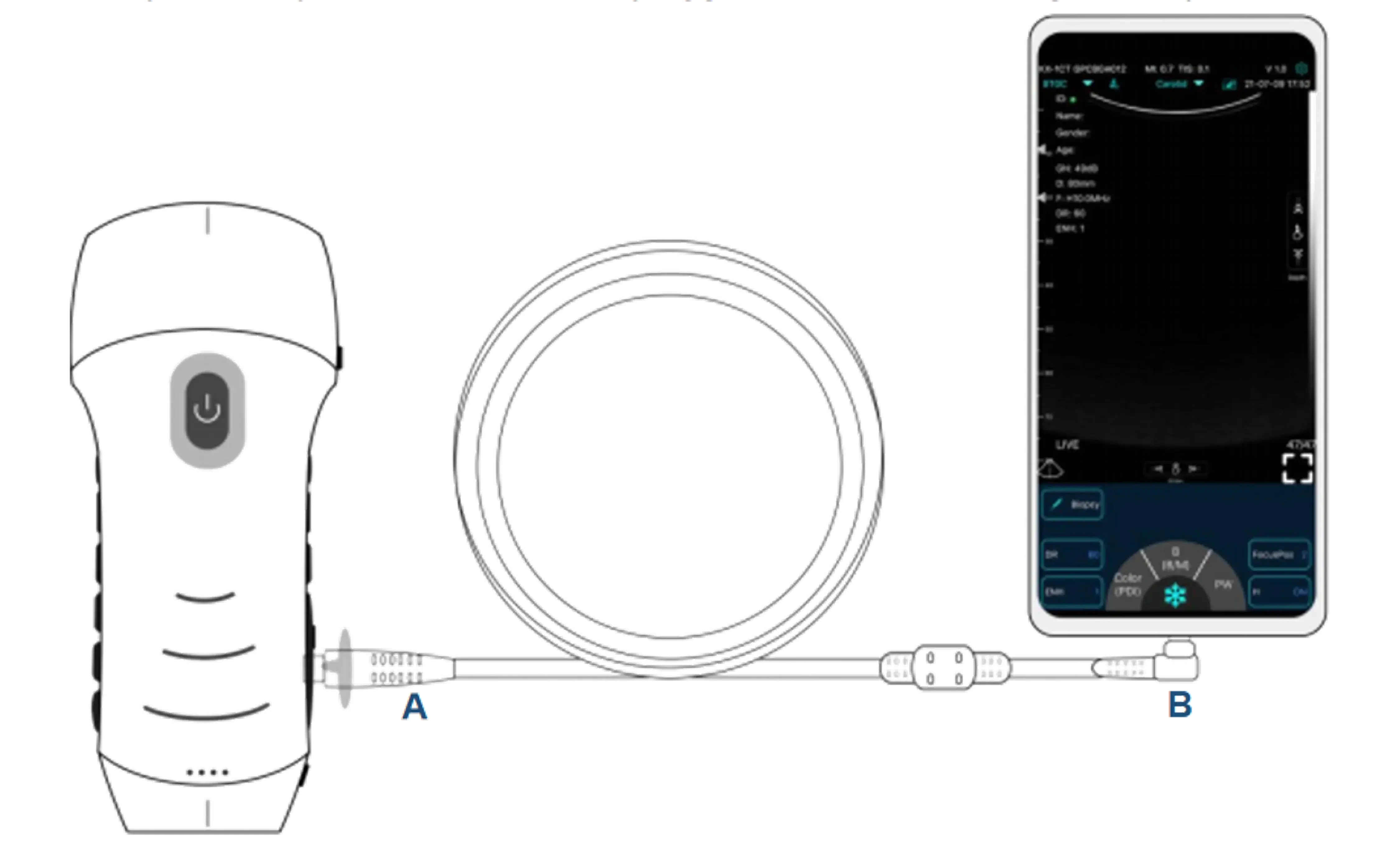
3.2 Method 2:USB Connection
Connect the probe to your smart device by Type-C cable according to the picture below.
Note:
The A-end must be fully inserted into the probe and the B-end must be fully inserted into the smart device
4 Login
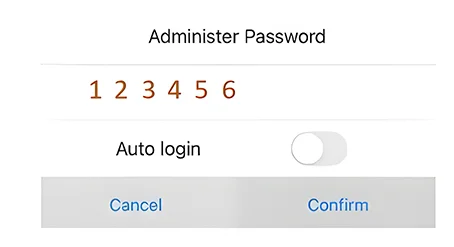
4.1 Initial Login Password
Open the APP and enter the initial password 123456
4.2 Change Login Password
1.Open Settings
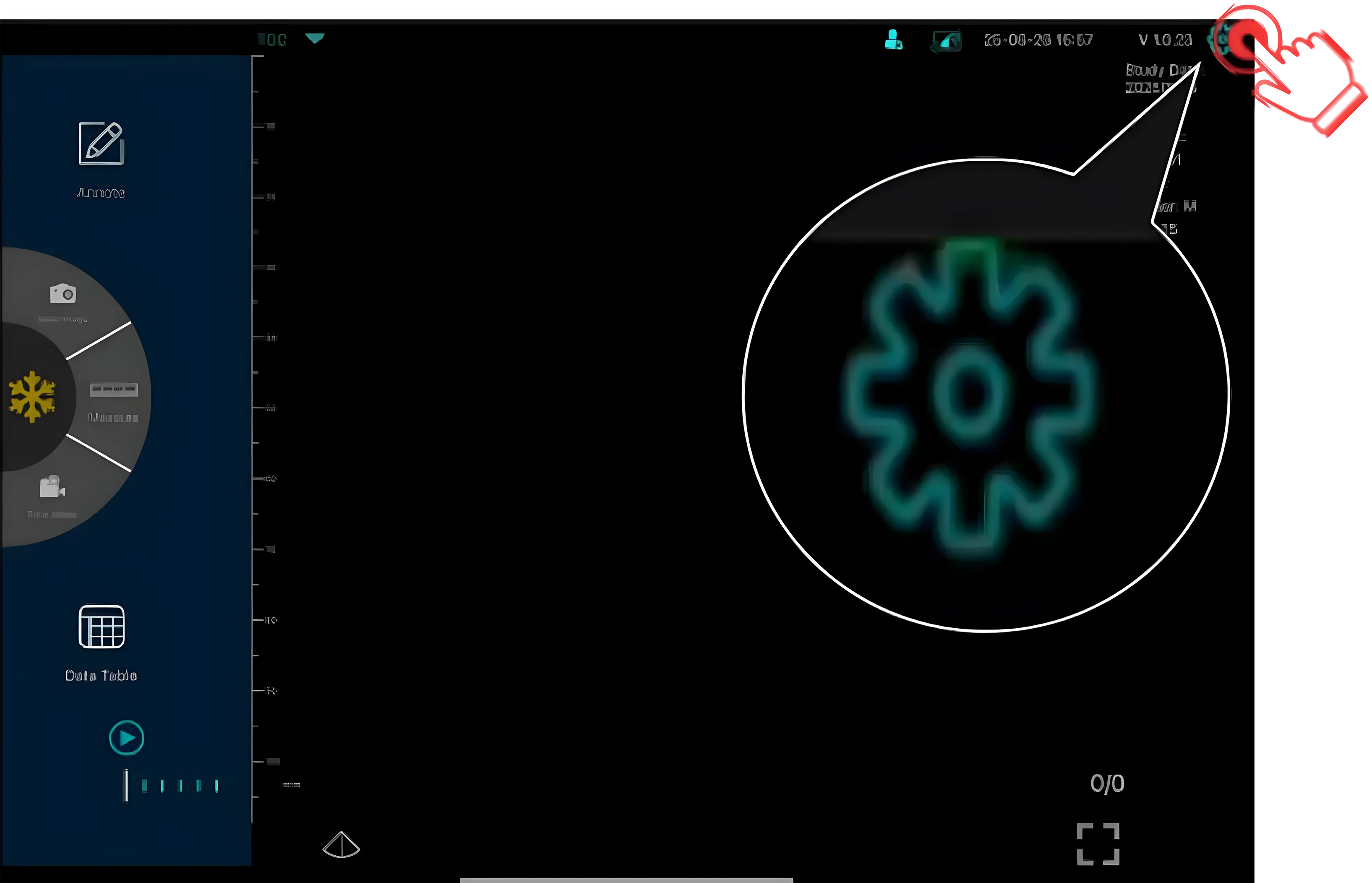
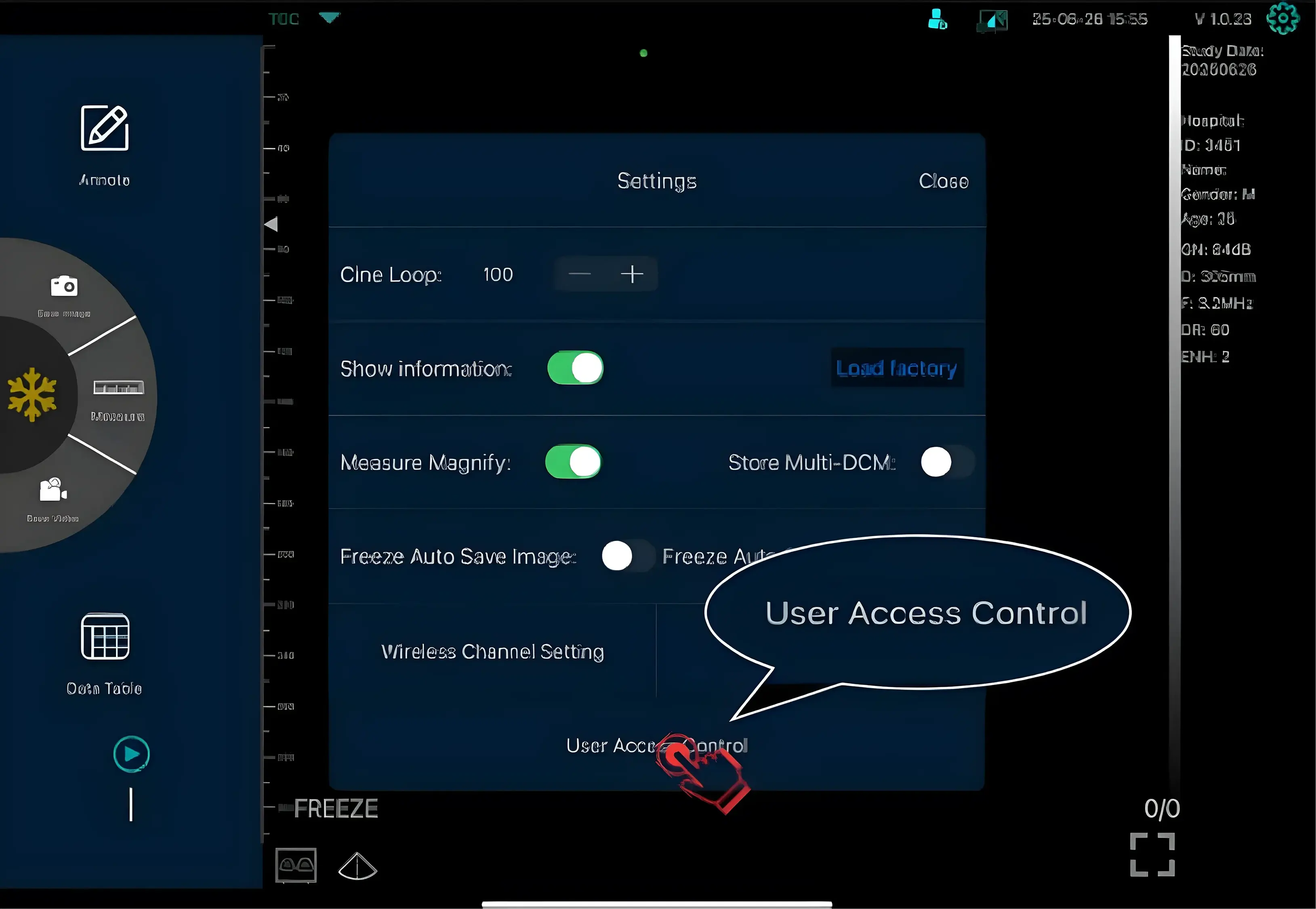
4.3 Click User Access Control
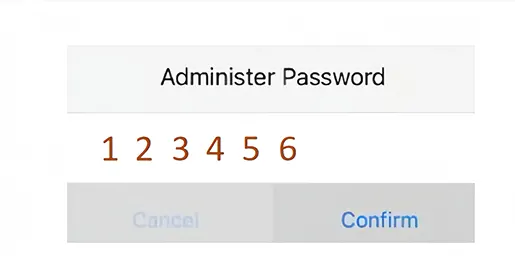
4.4 Enter Initial Login Password 123456
4.5 Set New Password
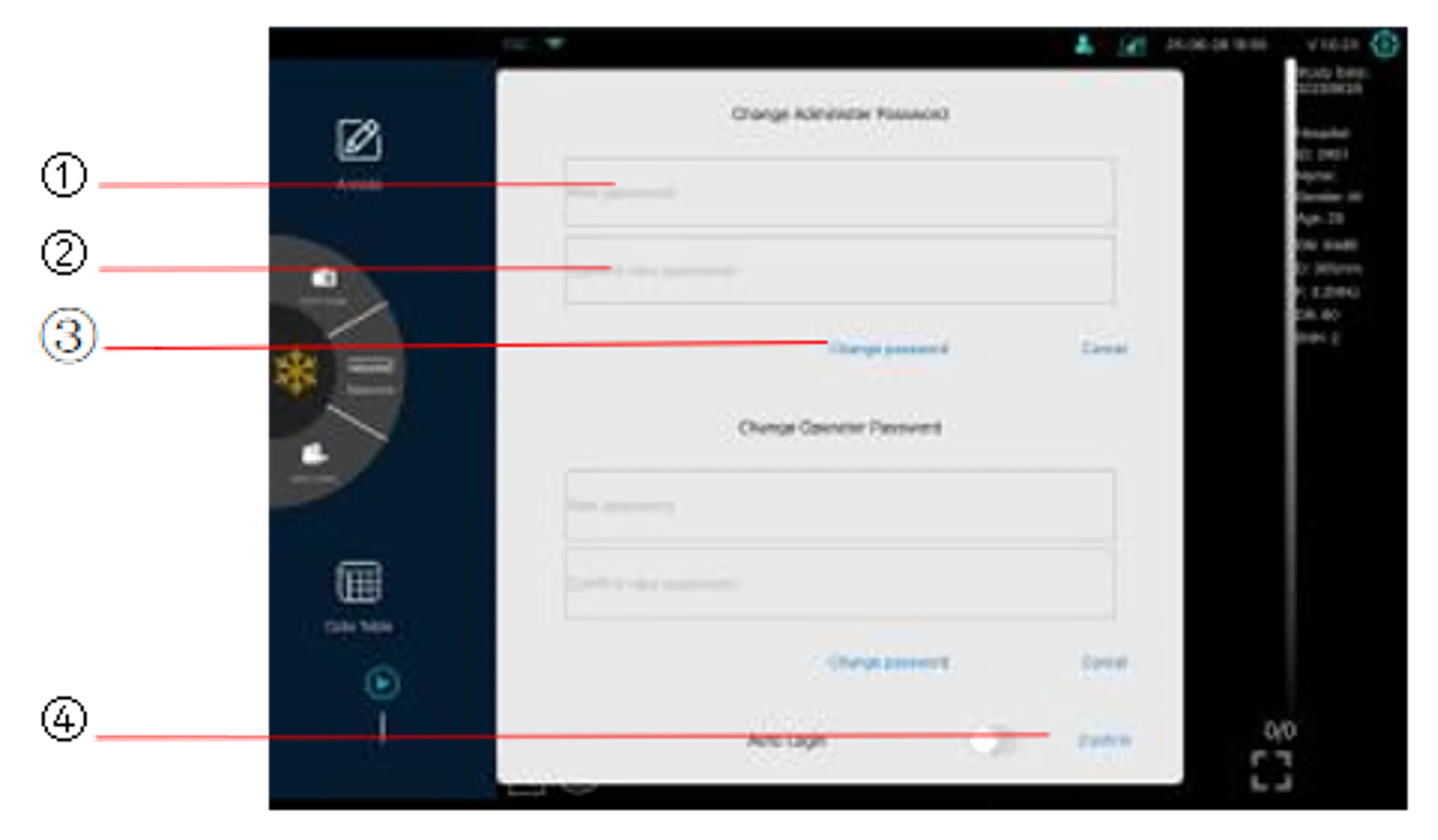
①Enter new password
②Confirm new password
③Change password
④Confirm
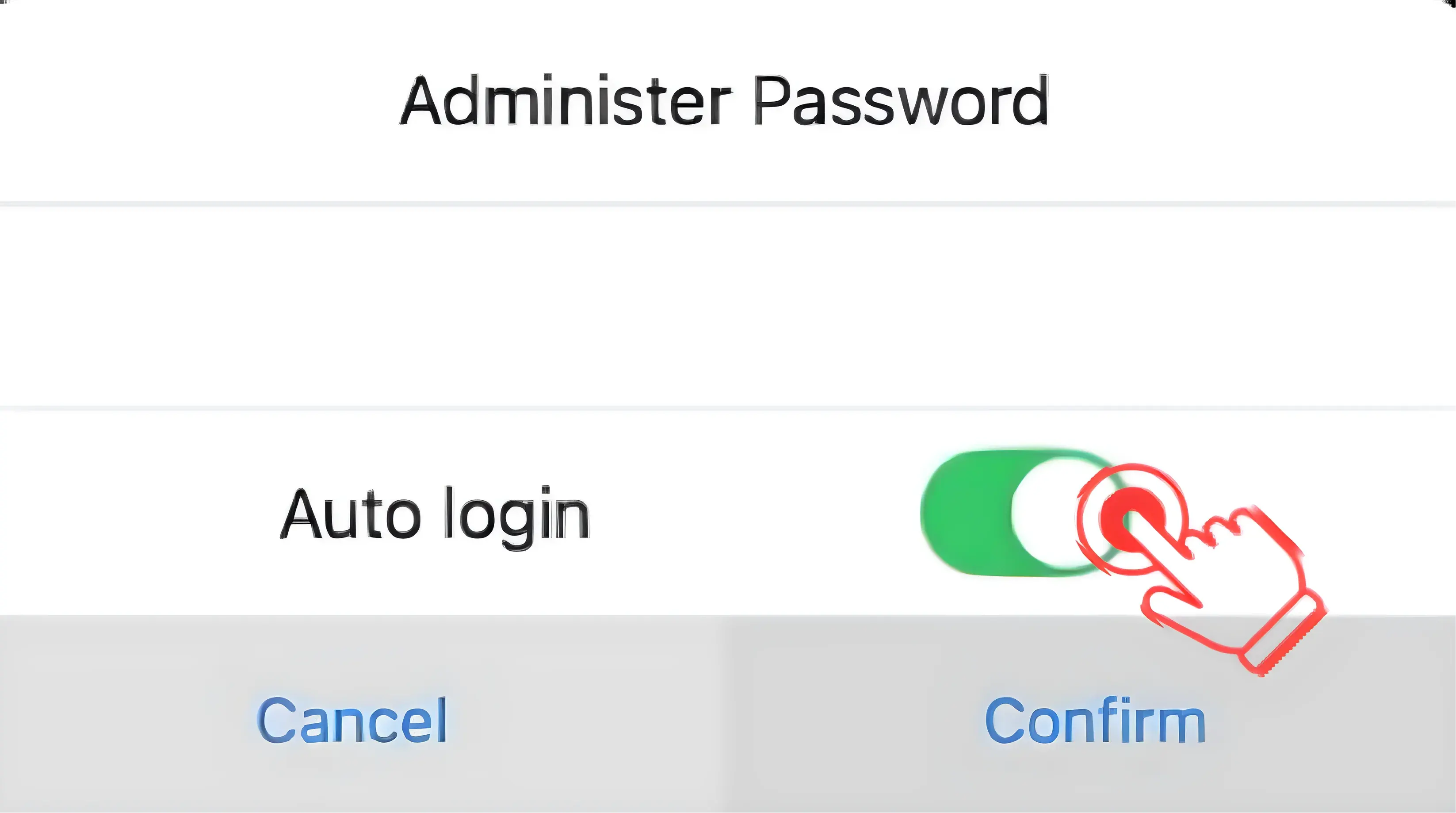
4.6 Enable Auto Login
You need to enter your password every time you log in. If you want to keep logging in automatically without entering the password, you can turn on auto login on the login page.